Lab 6: Bootstrap
In Building Bootstrap, you wrote a tiny version of Bootstrap yourself. Today you’ll use the real thing to build a landing page for a (fictional) coffee roaster, Ridge Line Coffee, with a navbar, a hero banner, a responsive grid of menu cards, and a couple of buttons. You will write almost no CSS; nearly all of the work is choosing the right classes.
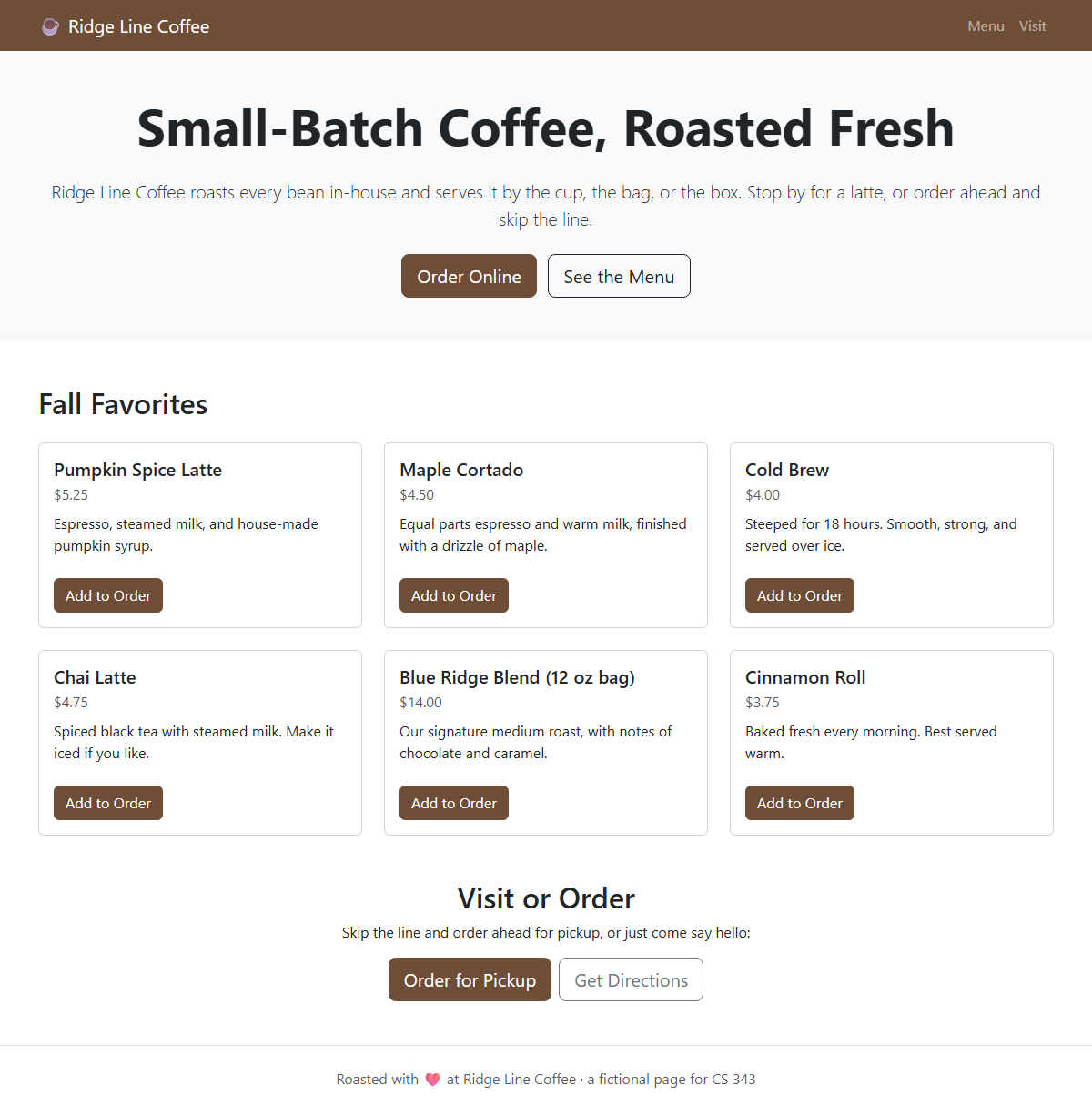
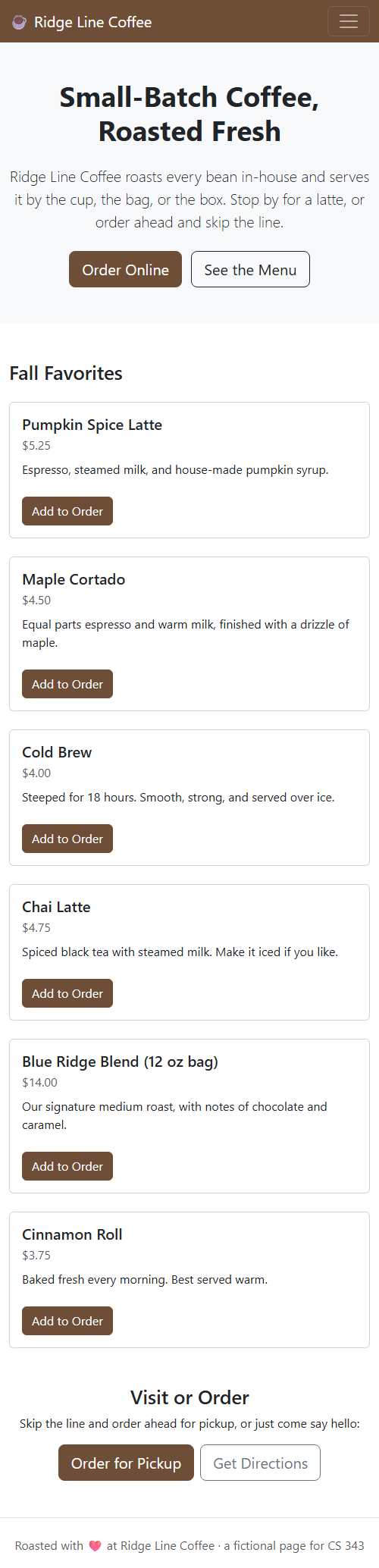
The finished page also adapts to small screens, with stacked cards and a collapsing menu:
Objectives
- Add Bootstrap to a page using its CDN links
- Use Bootstrap’s containers, 12-column grid, and breakpoints to build a responsive layout
- Apply components (navbar, buttons, cards) and utility classes (spacing, text, color)
- Read Bootstrap’s documentation to find the classes you need
- Customize Bootstrap’s theme with CSS variables
- Use an AI assistant to help you read documentation, without letting it do your thinking
Getting Started
Download lab06.zip and extract the two files to a lab06 folder, inside your cs343 folder (or somewhere else safe).
Open the folder in VS Code and start a live preview of index.html. It will look like an unstyled page from 1995, which is exactly what we want.
index.htmlhas all of the page’s content, but no Bootstrap classes. You will edit this file the most.custom.cssis nearly empty. You’ll use it in Part 3.
Keep the Bootstrap documentation open in a tab for the whole lab. Learning to find things in the docs is half of using any framework. These pages will be especially useful:
- Containers and Grid
- Spacing and Typography
- Buttons, Cards, and Navbar
AI Time: Get Set Up ✨
This lab has two AI Time callouts, like this one: a short setup now, and one exercise in Part 1 where AI can really help. They’re about using AI well. AI is never required (see the AI Tools page for the course guidelines), but if you want to try, do this setup now:
- Open Microsoft Copilot and sign in with your JMU account (it’s free for JMU students).
- You can use any AI chat you’d like, but Copilot is JMU-supported.
- Keep it open in a browser tab next to your editor. For this lab, we’ll ask questions in the chat, and you will write the code.
In a future lab, we’ll use GitHub Copilot inside VS Code, which can read and edit your code directly. For now, a chat window is all you need.
Warm-up: ask the chat, “In 3 sentences, what is Bootstrap and what problem does it solve?” Then skim the first page of the Bootstrap docs. Did the AI’s answer match? Checking AI against the real docs is a habit worth building.
Part 1: Bootstrap, Navbar, and Hero
Add Bootstrap
Bootstrap is just a CSS file (and an optional JavaScript file) that we load from a CDN (a server that hosts popular libraries for you). Find the two TODO Part 1 comments in index.html that mention Bootstrap’s CSS and JavaScript.
- In the
<head>, add the Bootstrap CSS<link>from the docs’ Quick start. It must come beforecustom.css, because later stylesheets override earlier ones. - Just before the closing
</body>tag, add the Bootstrap JS bundle<script>. Some components, like the collapsing navbar, need it. - Reload. You should already see some changes. What got better, and what didn’t?
Adding Classes and Attributes
You’ll add lots of Bootstrap classes in this lab, so here is the pattern. To give an element several classes, put them all in one class attribute, separated by spaces (don’t write class more than once on the same element). Other attributes, like data-bs-theme, go separately, as their own name="value" pair:
<!-- Before: no Bootstrap -->
<div>
    <p>Hello!</p>
</div>

<!-- After: two classes in ONE class attribute, plus a separate attribute -->
<div class="container text-center" data-bs-theme="dark">
    <p class="lead">Hello!</p>
</div>
If a tag already has a class attribute, add your new classes to the end of it (inside the same quotes). In the tables and lists below, “classes” means what goes inside class="...", and “attribute” means a separate name="value" pair.
Navbar
The <nav> already has the markup for a collapsing menu, including the hamburger button, but it has no Bootstrap classes yet. Add them to make it a real navbar:
| Element | Classes |
|---|---|
<nav> |
navbar navbar-expand-md bg-primary, plus the attribute data-bs-theme="dark" (so the text turns white) |
the <div> inside <nav> |
container |
the logo <a> |
navbar-brand |
the menu <button> |
navbar-toggler |
the <span> inside the button |
navbar-toggler-icon |
the <div id="nav-links"> |
collapse navbar-collapse |
the <ul> |
navbar-nav ms-auto (the ms-auto pushes the links to the right) |
each <li> and its <a> |
nav-item and nav-link |
Look at the Navbar docs if you get stuck. Narrow your browser window to test the hamburger menu.
AI Time: Name the Version ✨
Bootstrap changed a lot between versions, and AI models were trained on years of tutorials for all of them. Try this experiment in Microsoft Copilot:
- Ask: “In Bootstrap, how do I add a left margin to an element, and how do I make a button open a collapsing menu?”
- Now start a new chat (so it forgets the first answer) and ask again, but add “I’m using Bootstrap 5.3.”
- Compare the answers. Look for old-version classes like
ml-3(Bootstrap 4; version 5 usesms-3) ordata-toggle(version 5 usesdata-bs-toggle, like the menu button already in your navbar).
Tip: Always tell the AI the exact version of any library or framework you use. It’s the most common reason that AI code “looks right” but does nothing. And whenever you aren’t sure, the official docs are the source of truth.
Hero
The <header> is your page’s “hero” banner. Using the docs, make it look like the screenshot:
- Add a light gray background (
bg-body-tertiary),py-5for vertical padding, and center the text (text-center). - Put the content inside a
.container. - Make the
<h1>a large “display” heading (display-4) and bold (fw-bold). - Make the paragraph a
leadparagraph. Addmy-4for vertical margin. - Turn the two links into buttons: Order Online is a solid
btn-primaryand See the Menu is abtn-outline-dark. Make both large (btn-lg), and addme-2so there’s space between them.
Think: Utility Classes
Classes like py-5, my-4, fw-bold, and me-2 are utility classes, just like the .mt-10 and .big classes you wrote in Reusable CSS. How does my-4 compare to your m-3 from Building Bootstrap?
Part 2: A Responsive Grid of Cards
Now for the main event: Bootstrap’s 12-column grid. Find the Fall Favorites section.
- Add the
containerclass to the<section>andmy-5(vertical margin) too. Addmb-4to the<h2>. - Turn the
<div>into a.row. Add theg-4class to put a gap between the cards. - Wrap each
<article>in its own<div>, which will be the column. Give each column the classescol-md-6 col-lg-4.- Think about what this means: on small screens, the cards will stack. At
mdthey’ll be 2 per row, and atlgand above they’ll be 3 per row. (Each is 6/12 or 4/12 of the row.)
- Think about what this means: on small screens, the cards will stack. At
-
Turn each
<article>into a card:- Give it the
cardclass, plush-100so that every card in a row has the same height. - Add a new
<div class="card-body">inside the<article>, and move the name, price, and description into it. Only this one wrapper getscard-body, not the heading or paragraphs. - Give the heading, price, and description the classes
card-title,card-subtitle, andcard-text, respectively. (Addh5to the<h3>to shrink it, andtext-body-secondary mb-2to the price.) - Put the Add to Order link in a
<div class="card-footer">and make it abtn btn-primary. (Addbg-transparent border-0 pb-3to the footer so that it blends into the card.)
When you’re done, each card should be nested like this:
article.card ├── div.card-body │ ├── h3.card-title │ ├── p.card-subtitle │ └── p.card-text └── div.card-footer └── a.btn - Give it the
Do the first card carefully, then copy the structure to the other five.
Test it! Slowly drag your browser window wider and narrower (or use DevTools’ device mode) and watch the layout change at 768px and 992px.
Think: What Did the Grid Do for You?
In Building Bootstrap, you wrote .row and .col-md-* by hand. Which parts of that did you have to think about again here? Which parts did Bootstrap handle for you that you hadn’t considered (like g-4)?
Part 3: Make It Yours
Your page is functional, but it’s using Bootstrap’s default blue (#0d6efd) as its “primary” color. Give Ridge Line Coffee its own brand color! Pick any color you like (anything except the default blue); a color picker can help you find a hex code like #6f4e37. Bootstrap 5.3 exposes its theme through CSS variables, which you already know how to override!
Open custom.css (which loads after Bootstrap) and add the following. After each step, reload and see what changed. The examples below use #6f4e37, so replace it with your own color.
-
Override the primary color on
:root. Bootstrap needs the color twice: once as a hex value and once as the same color’s red, green, and blue numbers, separated by commas. (The color picker shows the RGB numbers. For#6f4e37, they are111, 78, 55.):root { --bs-primary: #6f4e37; --bs-primary-rgb: 111, 78, 55; }This fixes anything that uses the primary color directly, like
bg-primaryon the navbar. -
The buttons are still blue! Buttons define their own variables on the
.btn-primaryclass. Add this rule below your:rootrule, using the same color for--bs-btn-bgand--bs-btn-border-color, and slightly darker versions for the hover and active states:.btn-primary { --bs-btn-bg: #6f4e37; --bs-btn-border-color: #6f4e37; --bs-btn-hover-bg: #5a3f2c; --bs-btn-hover-border-color: #523929; --bs-btn-active-bg: #523929; --bs-btn-active-border-color: #4a3224; } -
Open DevTools, inspect one of the buttons, and find the
.btn-primaryrule in the Styles pane. You’ll see the--bs-btn-variables that Bootstrap defines. Which ones did you just override? Hover over a button to see the-hover-colors in action.
Warning
Bootstrap’s official way to customize colors is with Sass (a CSS preprocessor), which needs a build tool. For a small page like this, overriding CSS variables is quicker and good enough. For a large project, you would use Sass.
Part 4: Two Buttons
Last one, and it’s quick! Find the Visit or Order section near the bottom, with two plain links in a <div>. Turn them into Bootstrap buttons:
- Order for Pickup should be the main action:
btn btn-primary btn-lg. (Notice that it’s already your brand color!) - Get Directions is a quieter, secondary action:
btn btn-outline-secondary btn-lg. - Add
container my-5 text-centerto the<section>. - Make the
<div>a flex container that centers its buttons horizontally, with a gap between them:d-flex justify-content-center gap-2.
Think: <a> vs. <button>
These “buttons” are actually <a> links, but they look just like <button> elements. When should you use a link, and when should you use a real <button>? (Hint: ask yourself, does clicking it go somewhere, or do something?)
Bonus: Dark Mode
Bootstrap 5.3 has built-in color modes: add data-bs-theme="dark" to the <html> element and the whole page switches to a dark theme.
- Try it by hand: add the attribute to the
<html>tag and reload. - What still looks wrong in dark mode? (Hint: look at the hero and the “See the Menu” button, and think about
bg-body-tertiaryandbtn-outline-dark.) - Add a button to the navbar (inside the collapsing
<div>, after the links), styled asbtn btn-outline-light, that toggles the theme. You’ll need a little JavaScript: create ascript.jsfile, link it at the bottom ofindex.html, and toggledocument.documentElement.dataset.bsThemebetween"light"and"dark"when the button is clicked.
Submission
Submit index.html and custom.css (and script.js, if you did the bonus) to the corresponding Gradescope assignment.