My First Website
In this activity, you will learn how to upload files to the CS student web server.
The CS department has a webserver named w3stu that students can use to host websites and client-side applications.
w3stu is the same machine as stu, the server you may have used in other courses.
To connect to the server to transfer files, use stu.cs.jmu.edu.
To access your files via a web browser, use w3stu.cs.jmu.edu.
Installing FileZilla
For today’s activity, we will use FileZilla, an open-source graphical file transfer app. Follow these instructions to install FileZilla on your laptop. (FileZilla is already installed on CS lab machines.)
Installation Instructions
- IMPORTANT – Do NOT download FileZilla via the green button on their website. If you do, you will get the “sponsored” installer which contains adware.
- Go directly to this page to get the adware-free version for your OS:
https://filezilla-project.org/download.php?show_all=1
Alternatively, you can install via package manager:
- Linux:
sudo apt install filezilla - macOS:
brew install --cask filezilla
Connect to w3stu
Once you have FileZilla installed, connect to stu.cs.jmu.edu using the sftp:// protocol as shown in the screenshot, setting your username and password as appropriate.
The first time you connect to stu, you will get the “Unknown host key” pop-up box as shown; click “OK” to continue.
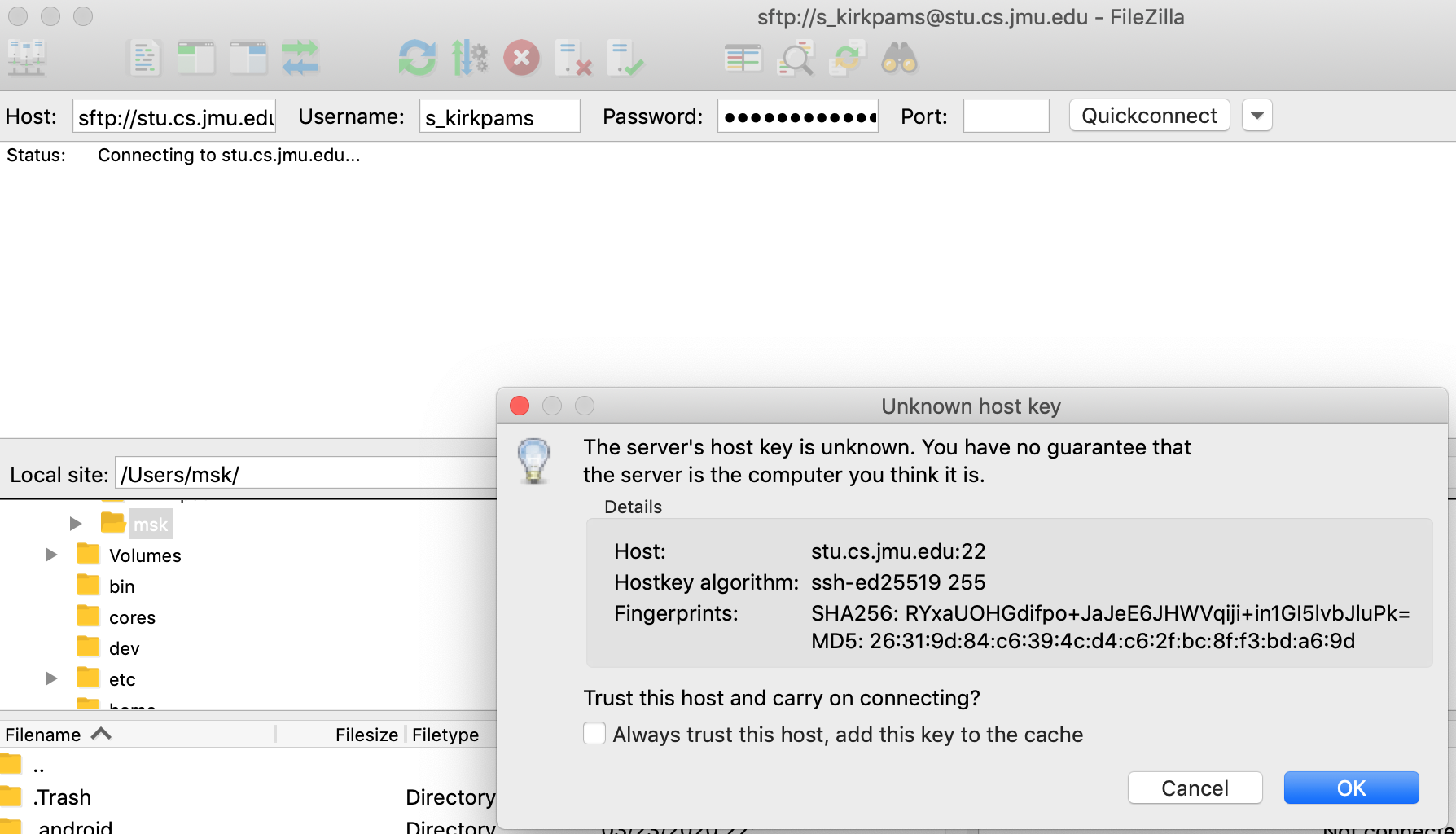
Make sure that the Host: is sftp://stu.cs.jmu.edu and not just stu.cs.jmu.edu.
The default behavior for FileZilla is to use the insecure ftp:// instead of sftp://.
This will not work, as stu does not accept incoming ftp:// connections.
Once connected, the right side will show the path /cs/home/stu/username (where username is your JMU eID).
Under the “Filename” list, scroll down until you see the “www” folder shortcut.
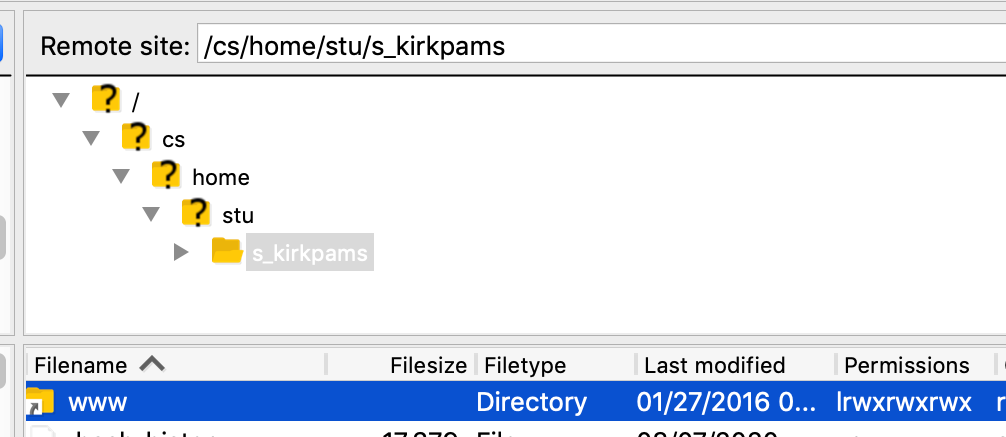
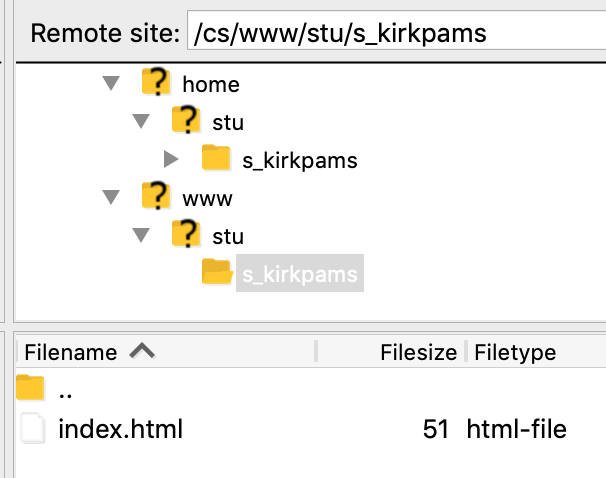
Double-click the “www” shortcut and you will see something like the screenshot below.
Notice that the “Remote site:” has changed to /cs/www/stu/username, which is the base directory of your website on the server’s file system.
Tip
If you don’t have a www shortcut, you can create one by running the following command on the stu server.
(You will need to ssh to stu in order to run this command.)
ln -s /cs/www/stu/$(whoami) www
Any file that you drag-and-drop into your www directory will be published on w3stu automatically.
If you copy a file named foo.html into this directory, you can access that file by pointing a web browser to the URL https://w3stu.cs.jmu.edu/username/foo.html.
Within FileZilla, you can also create subdirectories to organize your site’s pages.
Making index.html
Right-click the link below to save a copy of the file on your computer.
First, rename the file to index.html on your computer. HTML files are really just text files, but they must have the .html extension in order for the web server to recognize them as HTML files.
Open the index.html file in VS Code and take a look at the format of the HTML code. Note the following:
- A
!DOCTYPEdeclaration at the top of the file - The
<html>element that contains the entire page - The
<head>element that contains metadata about the page - The
<body>element that contains the content of the page - How some tags are like
<p>and some have a slash like</p>- What do you think the slash means?
Your Turn
Make the following edits to the index.html file:
- In the
<head>, change YOUR_NAME_HERE to your name in the<meta>tag that indicates the author. - In the
<body>, change YOUR_NAME_HERE to your name in the<h2>element. - In the
<body>, write some text about yourself in the<p>element.
Publish index.html to w3stu
Follow these steps:
- In FileZilla, first make a new subdirectory named
cs343under your/cs/www/stu/username/directory. - Then drag-and-drop the
index.htmlfile into thecs343subdirectory. - In a web browser, go to the URL https://w3stu.cs.jmu.edu/username/cs343/ (with your username). You should see your page with your name and text about yourself.
-
Also try https://w3stu.cs.jmu.edu/username/cs343/index.html. It should show the same page.
Magic Filename
The web server automatically looks for a file named
index.htmlin any directory. If it finds one, it will serve that file as the default page for that directory.This is why you can leave off the
index.htmlpart of the URL and still see your page.
If that worked, congratulations! You have successfully published your first web page to the CS student web server.
Submission
Submit the URL of your published page (e.g. https://w3stu.cs.jmu.edu/_username_/cs343/) to the corresponding assignment.