Lab 2: Accessible Madison 💜
Note: Headphones recommended! 🎧
Objectives
- Evaluate a website’s accessibility using Axe
- Use semantic tags to structure a document
- Compare a website’s screen readability before and after following accessibility guidelines
Context
The un-engineered version of the JMU homepage has been successfully deployed. Now, people in remote locations (like space) have been able to learn about JMU’s programs! We have made some modifications to your page to change up some of the headings and include more content.
However, complaints are coming in from people who rely on screen readers. The page is not very accessible. We forgot to check it with Axe before publishing. We want to make sure everyone is welcome and able to be a part of JMU.
Getting Started
Download the starter HTML file, then open it in VS Code.
Start a live preview/server using an external browser (e.g., Chrome, Firefox) to see the page (please do not just open the file in your browser: work smarter, not harder). - Guide for Live Preview extension - Guide for Live Server extension
Step 1: Accessibility Audit 🔍
- Before diving too far into the code, use a screen reader to try and navigate the page. - We recommend cycling through headings (e.g., pressing H on Windows, or Ctrl+Alt+Cmd+H on Mac) and then using Up/Down to go through individual options.
- Take note of two things in particular and see how they affect the screen reader:
- We accidentally made the headings progressively get smaller, from h1 to h6. We thought that each heading needed to be a unique number, without knowing what it actually meant. Oops!
- The featured stories have titles, but they are part of each paragraph and are only separated by
<br>tags.- The screen reader cannot distinguish between the title of a story and its actual content.
- Install the browser extension for the axe DevTools - Web Accessibility Testing. 🪓
-
In your browser, go back to your live preview of the JMU homepage.
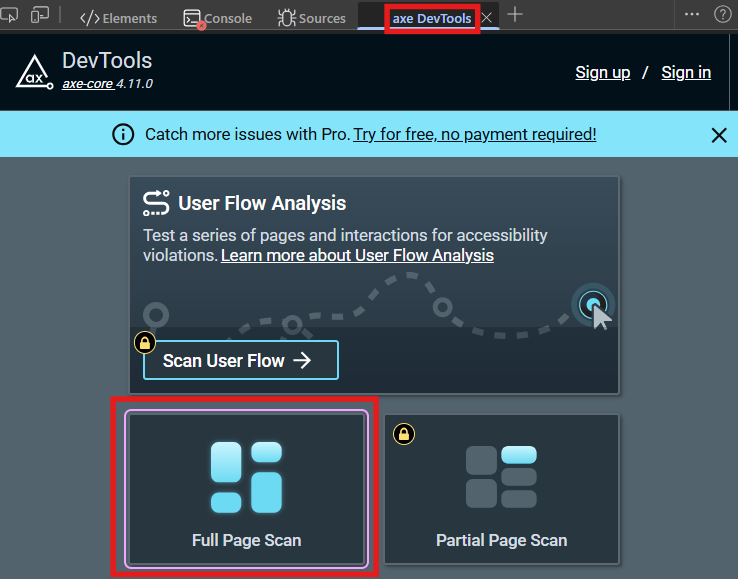
- Open the DevTools (press F12, or see other ways to open DevTools) and go to the Axe DevTools tab.
-
You will see a button to do a Full Page Scan for accessibility issues. Click it!
-
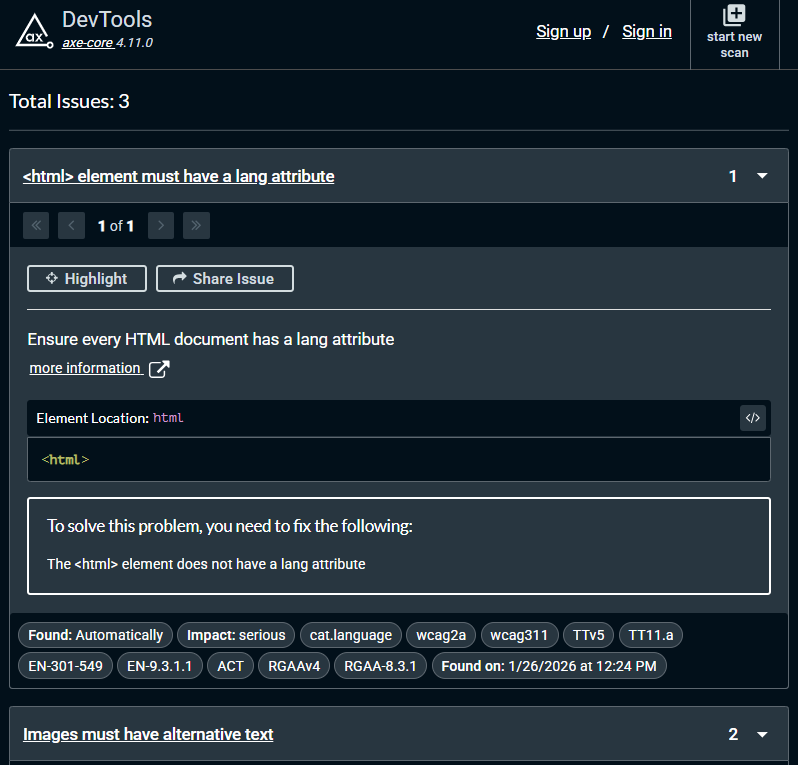
You should see 3 total issues.
- If you see more than 3, turn off the Best Practices toggle in Axe DevTools for now.
- Expand each issue to see more details about what is wrong, where the issue is located, and how to fix it.
- Read these carefully!
- Finally, go back to VS Code and just look at the HTML for the page.
- There are some weird things going on here!
Step 2: I Can Fix It! 🛠️
- Go into the HTML code and fix the issues identified by Axe. We will take you step-by-step.
- Have VS Code on one side, and your browser on the other.
- Re-run Axe after you think you have fixed each issue.
- First, fix the identified issues:
- Add alt-text to all your images, using the
altattribute. Provide a short description of each image. - Fix the
<html>tag to include the page’s language:lang="en".
- Add alt-text to all your images, using the
- Run Axe again to check if the errors have been resolved.
- While we’ve fixed the errors, there are still some additional features that would help improve accessibility and screen reader navigation.
-
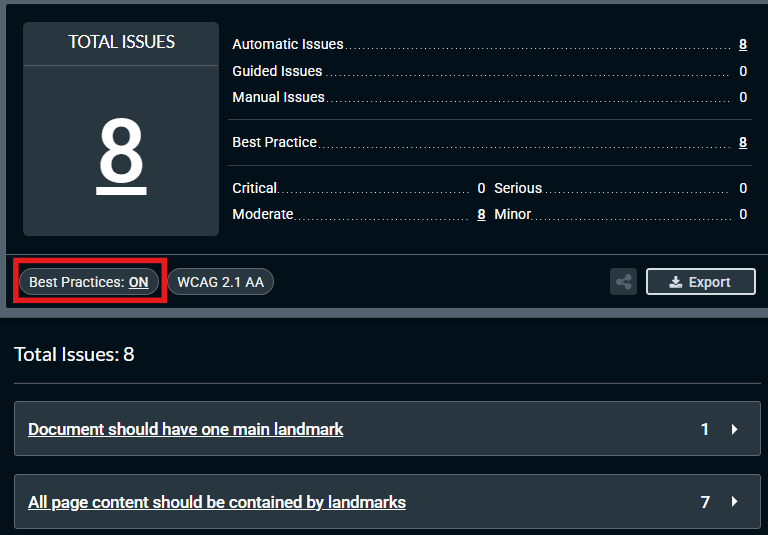
In Axe, turn on Best Practices. You will see 8 additional issues.
-
First, let’s make sure to use heading tags correctly.
- This is important for screen readers to navigate the page structure.
- Keep the James Madison University text at the top as an
<h1>. - Change all other heading tags (e.g.,
<h2>,<h3>, …) to<h2>.
- You can fix the “landmark” errors in Axe by using semantic elements to structure your document. Here is what to do:
- Semantic tags to use:
header,figure,nav,main,section,article,aside,footer,address. - You can change existing tags from a
<div>or<p>to the corresponding semantic tag. For example:can become<div id="top"> ... </div><header id="top"> ... </header> - Keep the
idvalues, since they are useful for anchor links.
- Semantic tags to use:
- Guide to follow:
- Your
bodyshould only have three children:header,main, andfooter. E.g.:<body> <header>...</header> <main>...</main> <footer>...</footer> </body> - Wrap the animated GIF image in a
figureelement. - The
headershould contain thenavas a child (you will need to move some elements around). - “about”, “explore”, and “stories” should be
sectionelements. - “give” should be an
aside. - Each individual story should be inside its own
articleelement.- Make each story’s title an
h3element.
- Make each story’s title an
- Add or remove
<p>and<br>tags as needed, making sure the format of the page still looks OK.
- Your
- Run Axe on your page again, if you have not done so already.
- Confirm that you still have no issues and that the structural elements section now shows that your page contains appropriate semantic elements.
Step 3: Play it (again), Sam!
- Use the screen reader to navigate this improved version of your page.
- Cycle through headings (pressing H on Windows, or Ctrl+Alt+Cmd+H on Mac) to skip to major parts of the page before drilling down into details.
- Note how changing the headings made a big difference to navigation.
- Also note how your semantic tags affect what the screen reader says.
- What about the giving part? Did making it an
asidechange anything?
- It might not feel like a large improvement, but think about someone who is expecting the page to behave a certain way.
Submission
Upload index.html to the assignment on Gradescope.