Huffman Coding
Introduction
The goal for this project is to develop a file compression utility to compete with applications like 7-Zip, gzip, WinZip etc.
Starter Code
Our textbook provides a partial implementation of a Huffman tree. We are providing a lightly refactored version of the textbook code that you may want to use as a starting point:
This code is incomplete and may require some modifications. You are free to use this code, ignore it, or to change it arbitrarily.
Specification
You must develop a utility class named MadZip with two public static
methods: zip and unzip.
You should not put all your code in the zip and unzip methods. You should split up complex functionality into smaller private methods. You should also utilize the HuffBaseNode, HuffInternalNode, HuffLeafNode, and HuffTree classes to help you with the implementation of the Huffman tree.
zip
-
The
zipmethod must accept twojava.io.Filearguments. The first is the location of the file that should be compressed, and the second is the location where the compressed version of the file will be saved. -
This method must perform the full Huffman coding process:
- It must determine the frequencies of all bytes in the source file.
- It must build a Huffman tree with the help of a Min-Heap. (You
are welcome to use your own
MinHeapclass, or Java's built-inPriorityQueue.) - It must use the Huffman tree to build a mapping from bytes to byte-encodings.
- It must use that mapping to generate a compressed version of the original file. This file will include both the frequency data and a sequence of bits representing the encoded version of the original file. (See below for details of the file format)
-
This method must throw an
IOExceptionif the the source file cannot be read or the destination file cannot be written to. - The return type must be
void. - This method must overwrite the destination file if it already exists.
- This method must not modify the source file.
unzip
-
The
unzipmust accept twojava.io.Filearguments. The first is the location of a previously zipped file, and the second is the location where the un-compressed version of the file should be saved. -
This method must perform the full Huffman decoding process:
- It must reconstruct the Huffman tree from the frequencies stored in the compressed version of the file.
- It must use that Huffman tree to decode the encoded bit sequence in the compressed file, saving all of the recovered bytes to the destination file.
-
This method must throw an
IOExceptionif the the source file cannot be read or the destination file cannot be written to. It must throw aClassNotFoundExceptionif that exception occurs during deserialization. (See below for more information on deserialization.) -
The return type must be
void. -
This method must overwrite the destination file if it already exists.
-
This method must not modify the source file.
Notes
The specification above describes the expected behavior of these
methods. It should not be read as a list of tasks that each require
code to accomplish. For example, the requirement that "this method
must overwrite the destination file if it already exists" describes
the default behavior of the write method for a FileOutputStream.
There is no need to write additional code to check for the existence of a file in order to satisfy this requirement. Make sure you understand the behavior of the built-in Java classes before you unnecessarily replicate existing functionality.
Special Cases
What should happen if there is only one unique value in your file? What would the Huffman tree look like? What would the encoding look like?
You should make sure that your code handles this case correctly, either in MadZip or in the HuffTree class.
If there is only one unique value in the file, the Huffman tree may end up with a single leaf node. The encoding for that value could be 0 or 1, but it should be consistent.
MadZipApp
We are also providing a Java GUI wrapper for your zip and unzip
methods, so you can easily test your implementation:
As part of your testing, you should use the GUI to zip several files, unzip those files with a different name, and confirm that the unzipped versions are identical to the original files.
There are many tools that will report whether two files are
identical. For example, the diff command-line tool should be
available by default under Linux and OS X.
File Format
You should already have experience reading and writing text files in Java. You may not have experience handling file I/O with binary data. For this application it will be necessary to both read and write binary data. We will need to read binary files because our compression tool should be able to compress any file, whether or not it contains plain-text. We will need to create binary files because the Huffman coding process results in a binary encoding. Saving a series of 0's and 1's as ASCII characters would not reduce the overall file size since we would end up using eight bits to store each individual bit of encoded data.
We are providing two Java files to help with efficiently manipulating
and storing binary data. The files BitSequence.java and HuffmanSave.java must not be
modified.
-
BitSequence.java- This class represents an arbitrarily long sequence of bits. You will use this class to represent the Huffman-encoded version of the input file. (You should not try to use it to store the data that is read in from the uncompressed file.) -
HuffmanSave.java- This is a simple container class that stores aBitSequencealong with aHashMapof frequency data. Recall that decoding the bit sequence created during the Huffman coding process requires us to have access to the Huffman tree that was used to create the code. AHuffmanSaveobject stores all of the information necessary to reconstruct a compressed file. The frequency data can be used to rebuild the Huffman tree and theBitSequencestores the encoded data.
For this application the compressed files must be serialized versions of
HuffmanSave objects. Object serialization is the process of
converting a complete Java object into a binary form so that it can be
saved to a file or communicated over a network.
Important: This tutorial
provides some background on serialization and shows examples of saving
and loading Java objects. You should follow the example for saving and
loading HuffmanSave objects.
We will follow the convention that compressed files should have a
.mz file extension, but this is not a requirement that should be
enforced by your zip method.
Reading Binary Data
You probably have the most experience reading files using the
Scanner class. Recall that every file is really just a long
sequence of bytes. The Scanner class is useful because it allows us
to interpret those bytes as ints, doubles, Strings etc. For
this project, we don't care what the bytes actually represent. This
means there is no reason to use the Scanner class. Instead you
should use the read method of FileInputStream to process the bytes
in the file directly. Wrapping your FileInputStream in a
BufferedInputStream will significantly improve file I/O performance
for large files.
Be careful! The documentation for the read method states that it
"reads a byte of data from the input stream", but the return type is
actually an int. The read method returns a value of -1 (which is
not a valid byte) if there are no more bytes available in the stream.
You can cast the return value to a byte, but you need to check for
the -1 before you do so.
Space Efficiency
Keep in mind that we might be interested in compressing very large
files. This means that we should avoid reading the
entire contents of a file into memory. In other words, don't use the
read(byte[] b) method of the FileInputStream, and don't save all
of the bytes into an ArrayList as they are read. Instead, process
each byte as it is read from the file. This means that you will end
up reading the file twice during the compression process: once to
determine the byte frequencies, and again to create the encoded bit
sequence.
Under the current design, we will need to store the entire contents
of the compressed version of the file in memory, since we need to
completely build the HuffmanSave object before it can be saved.
Handling Ties
One issue that needs to be addressed when developing a Huffman tree is how to handle ties: which trees should be selected when more than two options are tied for the lowest frequency? In one sense, it doesn't matter. In the case of a tie any valid choice will result in the same encoding length.
On the other hand different choices in tie-breaking will result in different trees and thus different encodings. This is an issue for decoding because the resulting bits can only be decoded by a tree that exactly matches the tree that was used for the encoding process.
Address this by providing a deterministic mechanism for breaking ties.
In the case of tied frequencies, your compareTo method should base
its comparison on the lowest byte value from each tree.
For instance, in the example below (pretend that a byte is 4 bits), the smallest value in the left tree is 0001 and the smallest value in the right tree is 0101. The left tree should be selected because it has the smaller value.
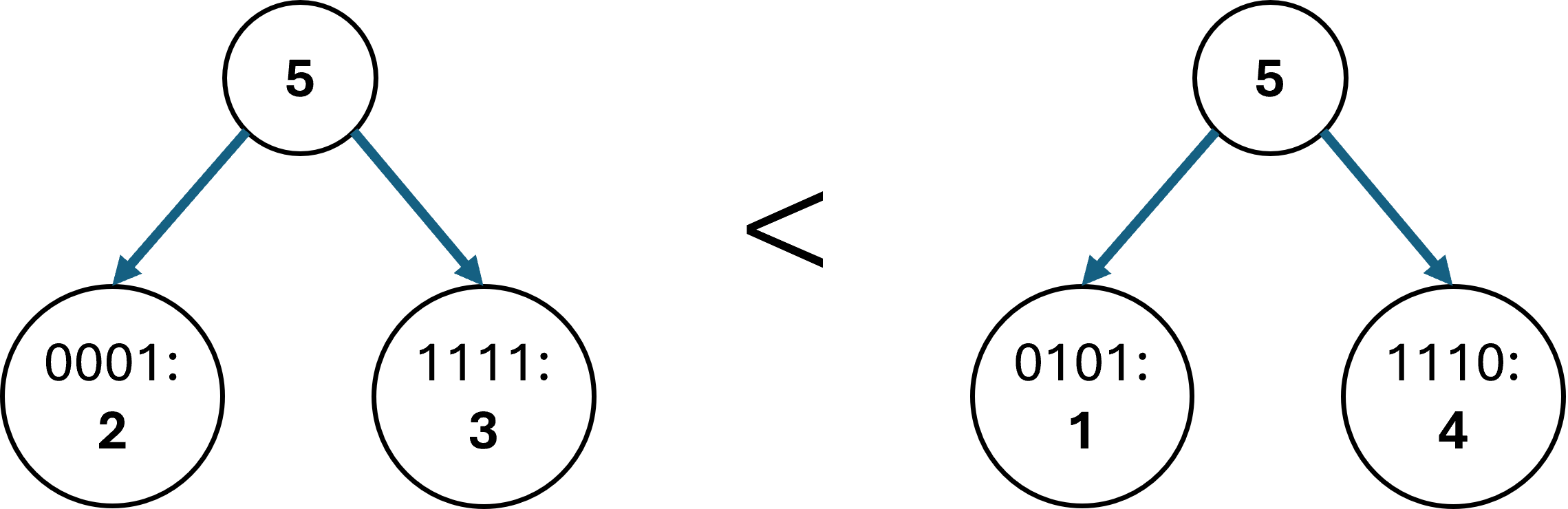
Failing to address this issue can lead to symptoms that are difficult to diagnose. The encoding and decoding processes may seem to work well in most cases because the tree happens to be built the same way for decoding as it was for decoding.
Debugging and Testing
For the purposes of debugging and testing your implementation you will want to create some sample files that are small enough to evaluate by hand. For example, a file containing:
aaaabbc
You will want to use a plain text editor (Notepad, TextEdit) to create these files. When using applications like TextEdit, make sure to save the file as "plain text" and not "rich text".
You can use a "hex editor" to view the raw contents of a file, showing you the byte values rather than the interpreted characters.
If you are using VS Code, there is an extension you can install called Hex Editor.
HexEd.it is a free in-browser application that can also do this:

Note that most standard text editors add a newline character
('\n') at the end of the file. If you're using Windows, you might
also get a carriage return ('\r'). These characters will show up
in your frequency counts as the bytes 0x0a and 0x0d,
respectively. (Note that 0x means we are talking about
hexadecimal numbers. In decimal, these bytes would be 10 and 13.)
Huffman Tree Visualizer
To help you learn about Huffman Encoding, there is also a Huffman Tree Visualizer that follows the same algorithm and tie-breaking rules as this PA. You are free to use it to help you visualize and understand how the tree-building and encoding process works.
This visualizer only works with text input, but it should match the encoding that your methods are expected to produce.
Test Files
Here are some test files that you can use to check your tree construction and encoding process:
- mary.txt - A small text file. The correct binary encoding length for this file is 89 bits.
- bytes.dat - A larger binary file. The correct binary encoding length for this file is 337918 bits.
Note that these sizes represent the number of bits in the encoding
generated using a correctly constructed Huffman tree. They are not
the actual file sizes that will result from calling zip. The .mz
files contain some overhead in addition to the bit sequence data: they
include the frequency map and some additional overhead inherent to
Java serialization.
The space overhead in the saved files mean that you should not be surprised if some files actually end up bigger after compression. It is possible that the space required for bookkeeping will outweigh any space savings gained by a more efficient encoding. This will tend to be true for small files and for files that were already compressed using some other tool.
Honor Code Reminder
There are undoubtedly many Java Huffman tree implementations floating around on the internet. Obviously, submitting any of that code as your own would violate the JMU honor code. As always, if you obtain any information from outside sources you must provide a link to your source in the acknowledgment statement in your submission. (Copying external code with a citation wouldn't violate the honor code, but it also wouldn't result in any credit for the project.)
Grading
Submit MadZip.java in addition to any helper classes that you
created through Gradescope. You do not need to upload
HuffmanSave.java or BitSequence.java.
| Gradescope Functionality Tests | 80% |
| Style Checks | 5% |
| Instructor Style Points | 15% |
You have 20 free submissions for this project. After that, each additional submission will cost 1 point of the total grade.