EER to Relational Mapping using MySQL Workbench
Getting Started
From the Workbench home screen, open the Model panel, and click the plus sign to create a new model. This will open a MySQL Model tab. In the EER Diagrams pane on that tab, choose Add Diagram to open an EER Diagram tab.
Category 6: Specialization Hierarchies
Although specialization hierarchies are covered last (category 6) in the slides, the CRS model requires these decisions to be made first, because a significant number of the entities in the model are involved in a specialization hierarchy (person, author, reviewer). The are several options for handling specialization hierarchies in a relational model:
- Each sub-class can become a table with no table for the super-class.
- Each sub-class table will have all attributes of the super-class.
- This is a poor choice for overlapping specialization hierarchies.
- Each sub-class can become a table and the super-class can also become a table.
- The super-class table will have a 1-to-1 identifying relationship with each sub-class table.
- All classes in the hierarchy can be combined into one table, including all attributes,
using boolean or type columns to differentiate between the subclasses.
- Only if the number of specific sub-class attributes is very small.
- A combination of these options.
As an overlapping type hierarchy, the possible choices for the CRS hierarchy are to combine all 3 entities into one table, have just a PERSON and REVIEWER table (because AUTHOR has no specific attributes), or give each entity its own table.
For this activity, we will make the second choice: PERSON and REVIEWER, where REVIEWER has a 1-to-1 identifying relationship with PERSON. Use the New Table tool to create a table for each of these.
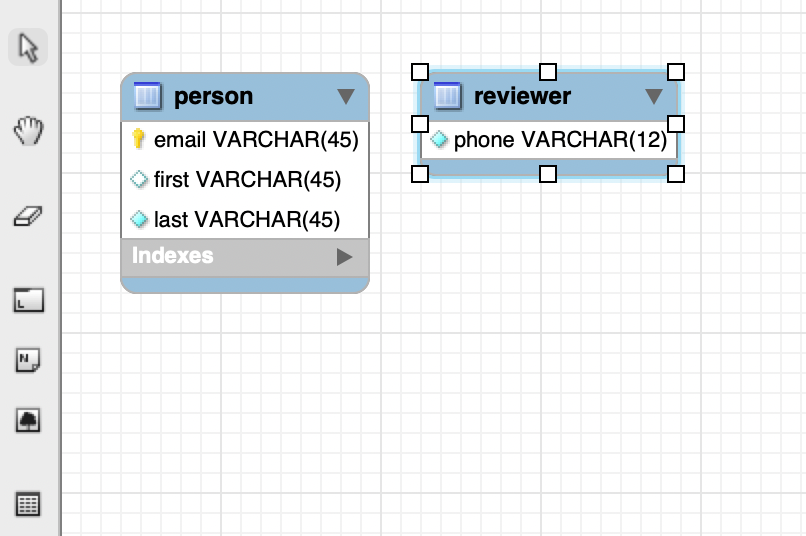
Adding attributes to a table in Workbench
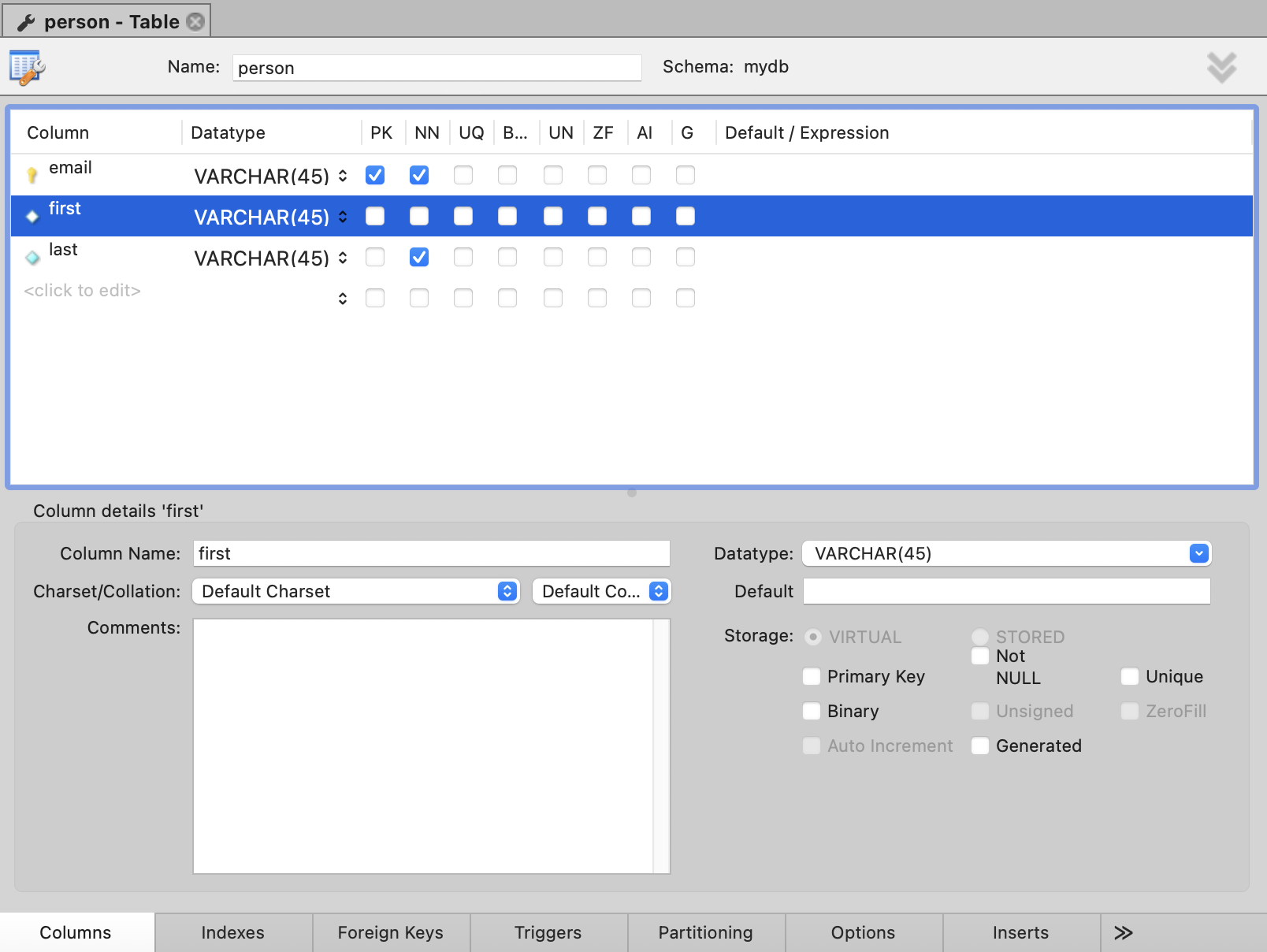
The Table pane has a Columns tab, where columns, their data types, features, and default values can be defined. Notice the checkboxes for column features like primary key, not null, unique, and auto-increment. Notice how the primary key column is denoted in the diagram.
Category 1: Regular and Weak Entities
Regular and weak entities become tables in a relational model.
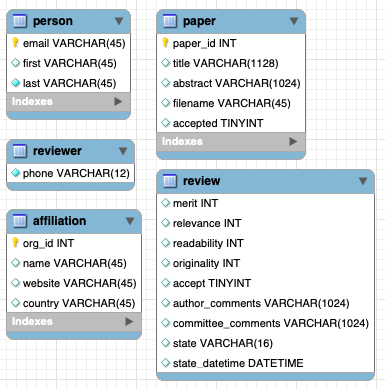
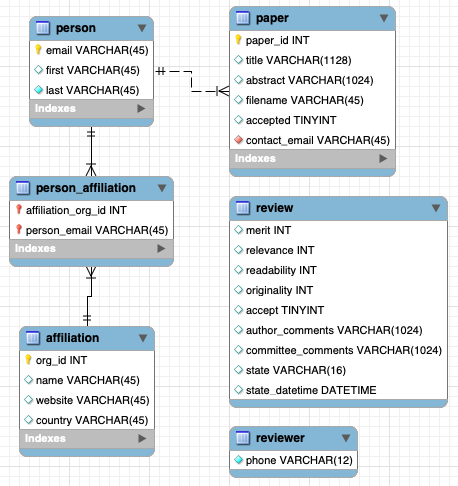
In order to demonstrate the rest of the categories, we will map 3 of the 4 remaining entities to tables: AFFILIATION, PAPER and REVIEW.
Use the New Table tool to create a table for each of the regular entities in your model.
Clicking on a newly-created table opens the Table pane at the bottom of the screen, where the table's name and other information can be entered.
Attributes of a regular entity
- The key of the entity becomes the primary key of the table.
- Simple attributes become columns/fields of the table.
- Each of a composite attribute's parts becomes its own column.
- A decision is made about whether or not to make a derived attribute a column of the table.
- Multi-valued attributes are handled in a later step.
In the AFFILIATION table, we create a new PK, org_id, rather than use name.
Attributes of a weak entity
- Attributes of a weak entity follow the same rules, except…
- The primary key of a weak entity is handled in a later step.
Category 2: Non-Identifying Relationships
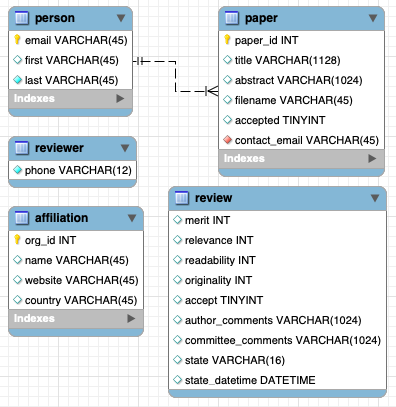
Non-identifying relationships are relationships that do not involve weak entities. They are depicted with dashes lines in Workbench. Workbench implements most of the required actions automatically when you connect tables using the relationship connectors. Relationship attributes must be created as columns in the appropriate table after the connection is made.
1-to-N relationships
- The primary key (PK) from the table on the 1-side of the relationship becomes a foreign key (FK) in the table on the N-side
- Any attributes on the relationship move into the table on the N-side
Click the connector tool, then click the table on the N-side first, followed by the table on the 1-side. Workbench draws the connector, and it automatically creates the FK in the table on the N-side. Notice how the foreign key column is denoted in the diagram. You may change the default name of the FK field.
Create the contact author relationship and change the name of the FK field.
1-to-1 relationships
- The PK from either table can become a FK in the other table.
- Make the decision based on the context.
- Any attributes on the relationship move into the table with the FK.
These relationships work exactly the same way as 1-N relationships in Workbench. Choose the table which will get the foreign key by clicking it first when placing the connector.
Category 3: N-to-M relationships
- Create a new table and make it the N-side of 1-N relationships from each of the original tables.
- The PK’s from both sides become FK’s in the new table, then the combination of the FK’s become the PK of the new table.
- Any attributes on the relationship go into the new table.
When you place an N-M connector in Workbench, the new table, with its required foreign and primary keys, is created automatically for you. You can then give it a new name and create any required attributes.
Note that the lines drawn by Workbench for an M-N relationship are solid, because, once the new table is created, the resulting two relationships are identifying (not non-identifying).
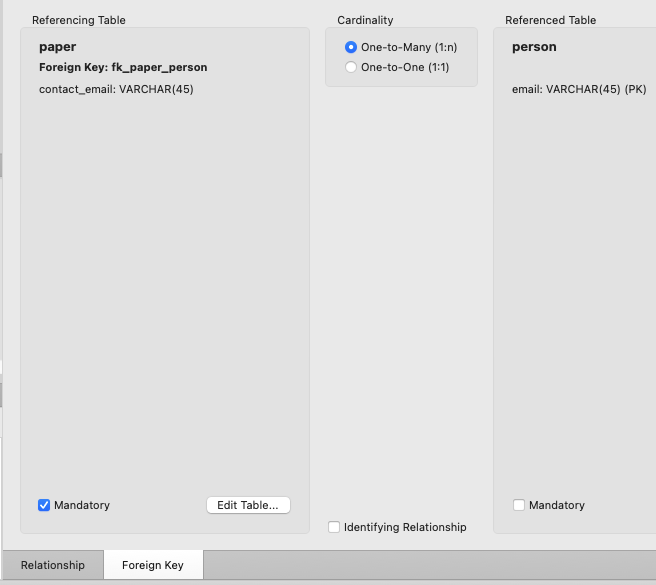
Relationship settings
To edit the settings of a relationship, double-click the connector to open the Relationship' pane at the bottom of the screen. This pane has 2 tabs which are available from the bottom of the pane*. In these tabs you can change the name of the relationship and set the cardinality and participation constraints.
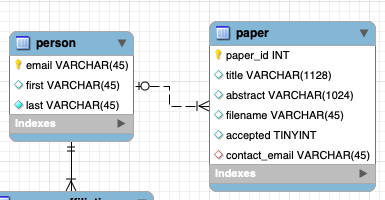
Category 4: Identifying Relationships
Identifying relationships involve a weak entity. They are shown with solid lines in Workbench.
1-1 identifying relationships
- The PK from identifying side becomes a FK and the PK of the weak-side table.
- There is no partial key in a 1-1 identifying relationship – this relationship is equivalent to a superclass-subclass relationship.
- Any attributes on the relationship move into the table with the FK.
- Another option is to merge the 2 tables.
The 1-1 identifying relationship connector in Workbench does all the necessary steps automatically.
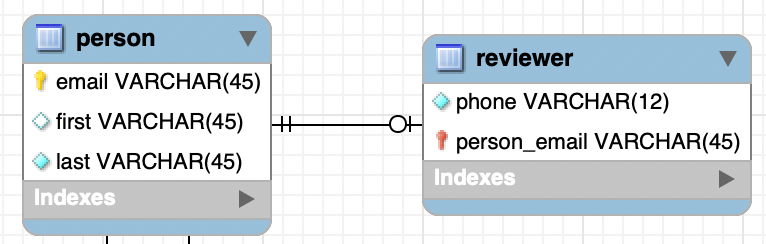
1-N identifying relationships
- The PK from the table on the 1-side of the relationship becomes a FK in the table on the N-side (the weak entity side).
- Any attributes on the relationship move into the table on the N-side.
- In the weak-side (N-side) table, the combination of the new FK and the partial key from the weak entity become the primary key of the table.
When you place a 1-N identifying relationship in Workbench, the FK created in the weak-side table is automatically made the PK as well. You must create the column(s) corresponding to the weak entity's partial key by hand, and make them part of the PK.
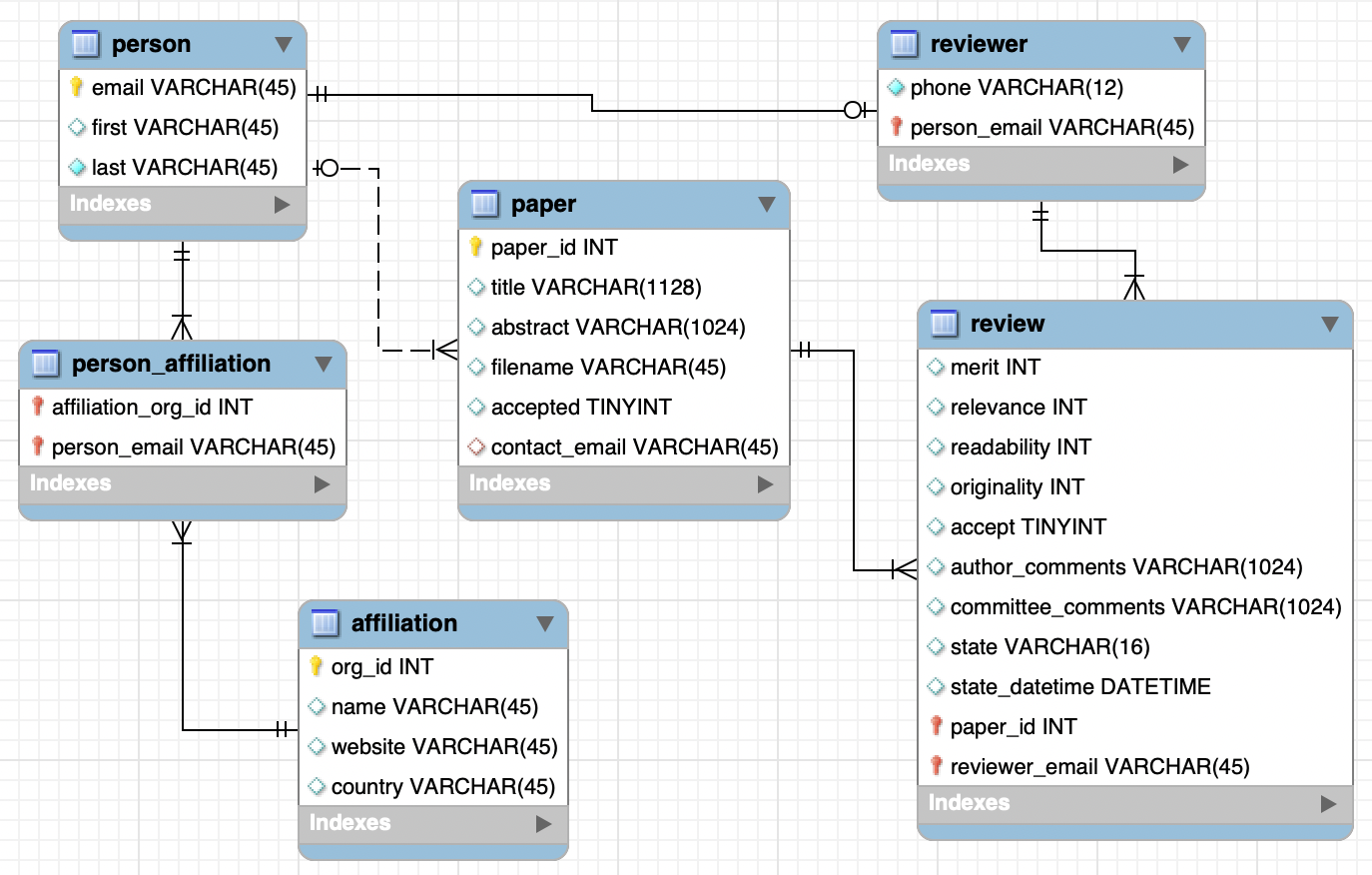
REVIEW is a weak entity identified by both PAPER and REVIEWER. It does not have a partial key.
Note how Workbench denotes a column that is both a PK and FK in the diagram (the notation differs slightly across versions).
Category 5: Multi-valued Attributes
- A multi-valued attribute requires a new table which contains:
- The PK of the table corresponding to the entity with the multi-valued attribute.
- A column for the multi-valued attribute.
- The combination of all the columns becomes the PK of the new table.
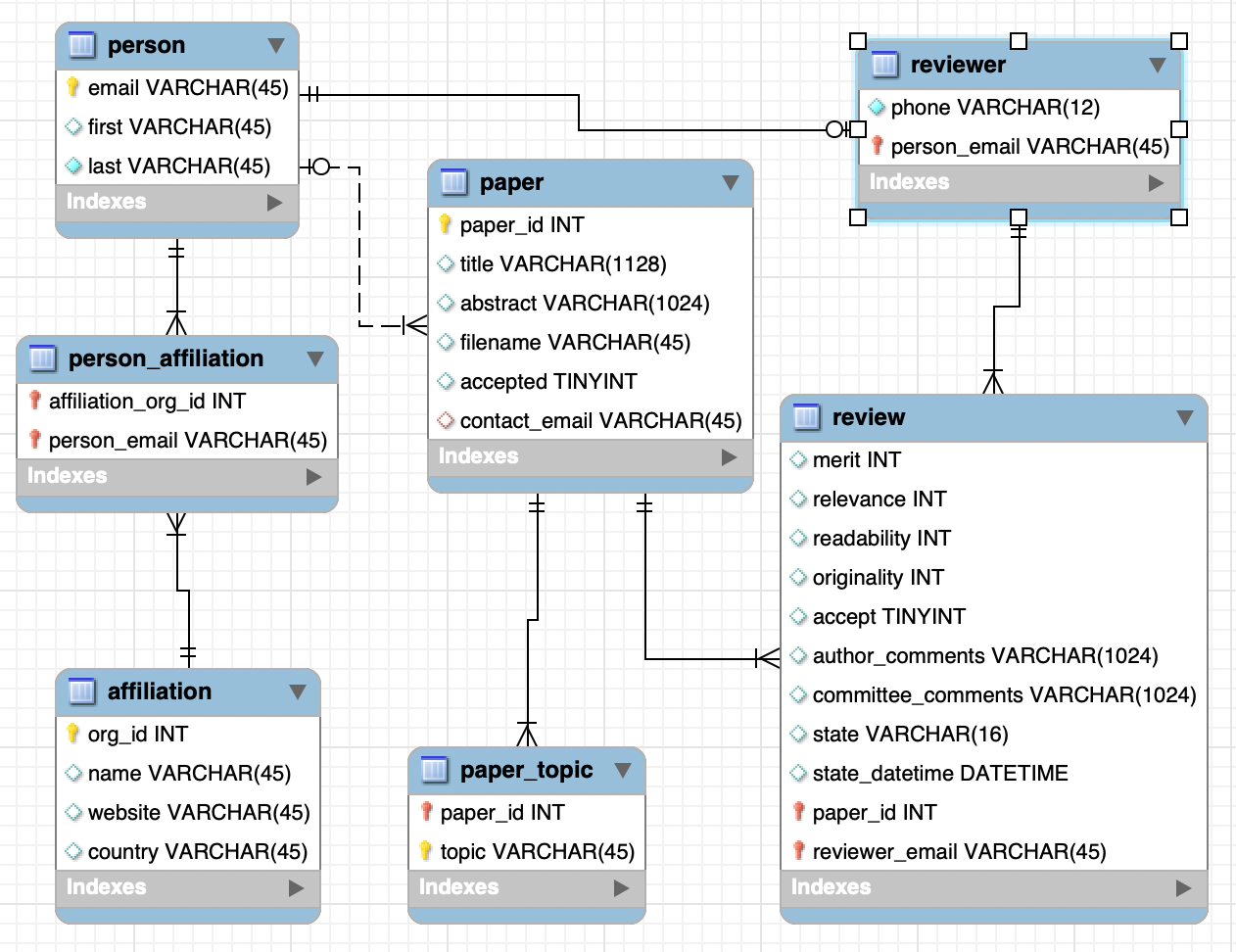
In Workbench, create the new table with no columns and then connect it to the table (which needs this multi-valued attribute) with a 1-N identifying connector. This will create the PK-FK in the new table automatically. Then add the column for this attribute into the new table by hand, and make it part of the PK.
Create the new table for a paper's topics, where the combination of paper and topic must be unique.
Complete the model
Add the remaining entity, M-to-N relationship, 1-to-N relationship, and multi-valued attribute to the model. Put the name of the person you worked with in a text box on your diagram. Export a PNG of your model and submit it to Canvas.