Visual Studio Code Setup
VS Code is an open-source editor by Microsoft. Since its release in 2015, VS Code has become incredibly popular. See, for example, the 2025 Developer Survey by Stack Overflow.
VS Code has support for many languages, including Python, Java, C/C++, JavaScript, and more. This page explains how to install and configure VS Code for Python in CS 149.
Note
If you are on a CS lab machine, Python and VS Code are already installed. Skip to Step 3.
Step 1: Install Python
Thonny comes with Python built-in, which is ideal for beginners. But generally, you need to install Python separately.
If you haven't done this previously, visit python.org.
Download the installer for your operating system, and run the installer.
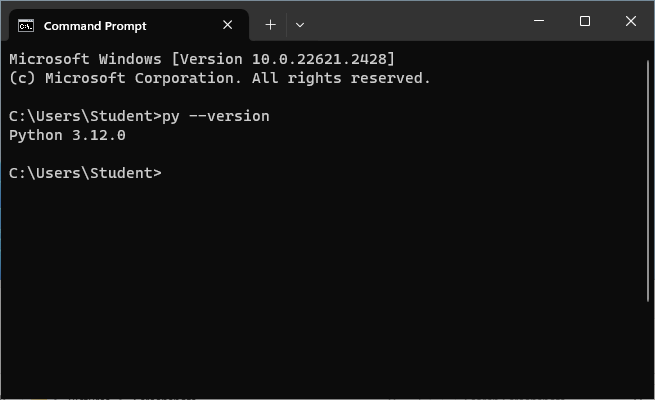
To verify the installation was successful, open a Terminal and
type either python3 --version (on macOS) or py --version (on Windows).
Your version number might be newer than the images below.
Tip
When installing on Windows, check the box for "Add python.exe to PATH".
Figure 1: Running the Python Installer
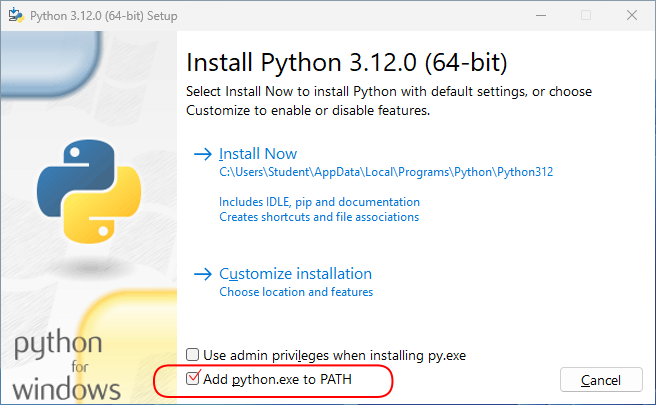
Figure 2: Running Python in the Terminal
Step 2: Install VS Code
Visit code.visualstudio.com and click the Download button.
- On Linux, install the deb or rpm package. Additional details are available here.
- On macOS, drag the app to the Applications folder. Additional details are available here.
- On Windows, run the installer and follow the steps. Additional details are available here.
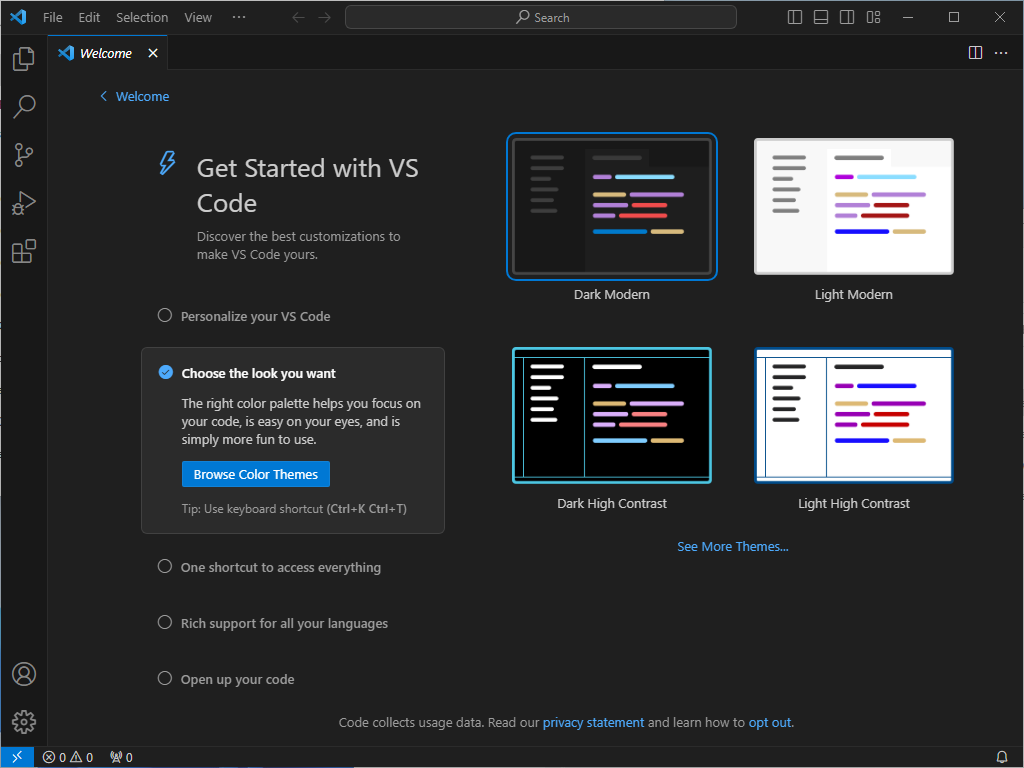
If you are running VS Code for the first time, you should see the Welcome Page. If you have used VS Code in the past, you will likely see your previous files.
Figure 3: VS Code's Welcome Page
Step 3: Install Extensions
Extensions add new features and languages to VS Code. Developers can publish extensions via the Marketplace.
- Click the Extensions icon in the Activity Bar (on the left).
- Search for (by name) and install the following extensions:
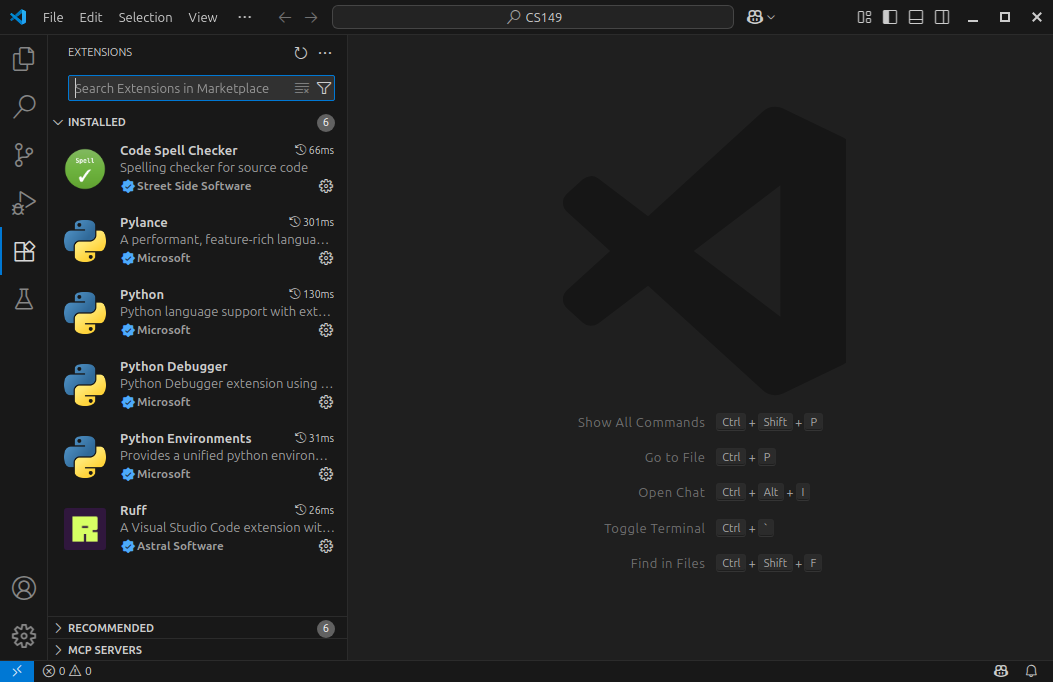
Note: The Python extension also installs Pylance, Python Debugger and Python Environments. In the end, you should have the following extensions installed:
Figure 4: List of Installed Extensions
Step 4: Your CS149 Folder
You should have a CS149 repository containing all your work for the course.
Open this folder in VS Code by going to the File menu (at the top) and clicking "Open Folder…"
The folder contents (on the left) might look like this:
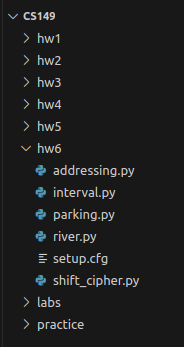
Having a folder open in VS Code provides additional features that are not active when simply opening a file.
For one, the Search feature (magnifying glass icon on the left) will allow you to search all of your CS149 files.
Step 5: Virtual Environment
After opening your CS149 folder, make sure your "virtual environment" (venv) is activated.
First, open a Python file to activate the Python extension.
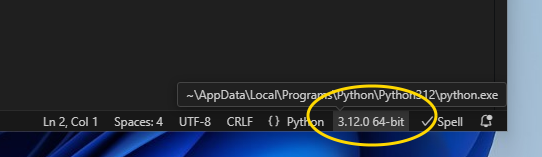
Then, click the Python version number in the lower-right corner of the window:
Note
If you don't see (.venv) after the version number, click the "Create Virtual Environment…" option.
Select "Venv" and then click the Python interpreter you installed previously.
This process will create a .venv folder under your CS149 folder so you can install packages.
Before moving on to the next step, make sure that your virtual environment really is activated.
Click the trash icon () on the top or right side of the terminal to delete all previous terminals.
Then open a brand new terminal window.
You should see the text (.venv) at the beginning of the command line.
If not, ask for help from an instructor or TA.
Note
If you created a new Virtual Environment, you will need to install packages.
Previously, we had you install ruff via Thonny.
Run the following command in the terminal:
Step 6: Workspace Settings
VS Code has thousands of settings that you can customize. The following settings are recommended for CS 149. You are welcome to change any of these and add your own.
- Press F1 to open the command palette.
- Type
work jsonand press Enter.- This will open a file named
settings.jsonin your workspace.
- This will open a file named
- Paste the following settings between the curly braces:
"breadcrumbs.enabled": false, "chat.disableAIFeatures": true, "editor.codeLens": false, "editor.inlayHints.enabled": "offUnlessPressed", "editor.minimap.enabled": false, "editor.rulers": [100], "editor.scrollBeyondLastLine": false, "explorer.compactFolders": false, "files.exclude": { "**/__pycache__": true, "**/.pytest_cache": true, "**/.coverage": true, "**/.ruff_cache": true, }, "files.insertFinalNewline": true, "files.trimFinalNewlines": true, "files.trimTrailingWhitespace": true, "[python]": { "editor.defaultFormatter": "charliermarsh.ruff", }, "python.analysis.typeCheckingMode": "basic", "python.testing.pytestArgs": [ ".", ], "python.testing.pytestEnabled": true, "python.testing.unittestEnabled": false, "terminal.integrated.allowChords": false, "terminal.integrated.defaultProfile.windows": "Git Bash", "terminal.integrated.initialHint": false, "terminal.integrated.suggest.enabled": false, "window.confirmBeforeClose": "always", "workbench.secondarySideBar.defaultVisibility": "hidden", "workbench.tree.indent": 16, "cSpell.words": [ "Gradescope", "JMU", "Runestone", "Thonny", ], - Save and close the
settings.jsonfile.
These settings are saved in CS149/.vscode/settings.json, so they apply only when the CS149 folder is open.
If you open a different folder (or a single file), VS Code uses its default settings instead.
For this course, we recommend that you always open your top-level CS149 folder.
Python Shell in VS Code
VS Code provides a system shell for interacting with the operating system. On Linux, the system shell is usually bash; on macOS, it's usually zsh; and on Windows, it's usually PowerShell, but we recommend you change that to Git Bash. You can't type Python code directly into a system shell. Instead, you can run a Python shell within the system shell.
- To start a Python shell, type the
pythoncommand and press Enter. - To exit a Python shell, type
exit()orquit(). Or use a keyboard shortcut:- On Linux and macOS, press Ctrl+D.
- On Windows, press Ctrl+Z then Enter.
Going Further (optional)
The official tutorial by Microsoft is available here: Getting Started with Python in VS Code (15 articles). You don't need to read the tutorial. We will teach you what you need to know.