James Madison University, Fall 2021 Semester
Lab04: Unix commands and creating a web page
Background
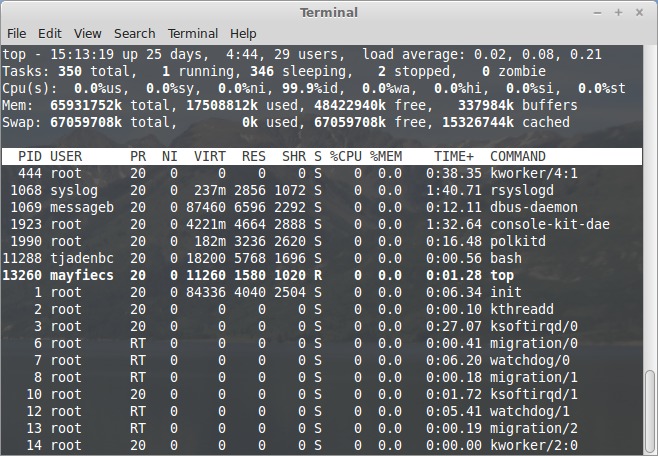
The PCs in the CS Department labs ISAT/CS249, ISAT/CS 250 and EngGeo2204 run Linux Mint. If you have an iMac or Apple laptop, they run macOS. Both operating systems are based on Unix and come with a powerful suite of general purpose computing tools. Many of these tools are only available via the command-line interface (also known as the "Terminal"). You will learn some of these commands in this course and others throughout your career. In this lab, you will use the command line to gain insight into how operating systems work.
On Tuesday we will go to one of our CS Labs in which all the machines are running Linux. You can complete all work of this lab using the department lab machines without the need to install any software!
Part 1: Creating New Processes
If you have not viewed the  Command Line Basics tutorials, please do so before you begin the lab.
-
Download a copy of Lab04-Worksheet.txt to your Desktop directory (right-click and "Save link as..."). Then open a terminal, and change to your Desktop directory. Use
lsto see what all files you have on your desktopNote: Do not change the file extension. -
You can run most programs directly from the command line. For example, enter the command
nano Lab04-Worksheet.txt. Don't type the entire command yourself; press the tab key after typing the capital L. Answer the first four questions and save the file. You may find the Wikipedia article on Unix permissions useful for Question 4. - Experiment with command line programs such as
ls -a, ls -l, cd, pwdthat are part of the command line basics -
When you run a program from the terminal, the operating system creates a new process for it. By default, the terminal waits until that process has completed before allowing you to enter another command. At this point you should have
nanorunning and the terminal prompt is not visible, which means it is waiting for this process to complete. -
Close your
nanowindow. You should now be able to type another command in the terminal. Press the up and down arrows a few times (in the terminal) and see what happens. If you ever need to type the same command twice, don't forget you can use the up arrow to find it. -
Run
nanoagain to open your worksheet -- remember to use the up arrow! with the & at the end of the command, e.g.,nano Lab04-Worksheet.txt&. What just happened? The & puts a process in the background mode, e.g., in this case it tells the OS not to schedule the process until further notice. To resume the process, enter thefg("foreground") command in the terminal. You should now be able to edit your file. -
You can launch multiple processes in the background. Again, edit your worksheet using nano and place in the background. Then edit a new file
temp.txtwith nano and also place it in the background. Now type thejobscommand. You can use thefgcommand to select which process to bring back to the foreground. Experiment with usingfg. and answer question #6 in the worksheet. -
Finally, you can terminate processes from the command line using the kill command. (I know that sounds rather violent, but it's just the name that was chosen back in the day.) Assuming you have nano as your first job and another nano as your second job, type
kill %2in the terminal and see what happens.
Part 2: What Multiuser Means
-
Let's take a look at what all processes are running on a computer. First, log onto one of the Computer Science Department Lab machines. You can do this from off campus by following these steps:
- Open a terminal on a Linux lab machine, your macOS machine
- Enter
ssh eid@student.cs.jmu.eduat command prompt, uid is your jmu eid, e.g.,simmonsj. You will be prompted for a password, use your JMU password. Yes, you were set up with an account on the CS Linux machines. You may be asked a question about continuing, select yes. Now you are logged into the student Linux server. The command prompt in your terminal should now beeid@stu:~$> If not, you need to stop and get this to work.
- From the Linux server, in the same terminal, you need to log onto one of the numerous Linux lab
machines. Enter the command
ssh L250**.cs.jmu.edu, but replacing the ** with a number between 01 and 33.
-
Congratulations! You have logged onto one of the Linux machines in ISAT/CS 250. If you are working in the Linux Lab you were already on one the L248**.cs.jmu.edu machines. The ssh program stands for "secure shell" and allows you to open a terminal on another computer. After logging in, type the
whocommand to see who else is logged in. - At the prompt, enter
hostnameThis should contain the name of the lab machine you selected. This machine is uniquely identified by this name. -
Let's take a look at all processes running on this Linux computer. Enter the
topcommand on the terminal. The top program lists the top-running processes, including the process id (PID), what user owns them (USER), how much memory they're using (VIRT=virtual, RES=reserved physical, SHR=shared), how much CPU they're using, and so forth. -
Within
top, press the 1 key (i.e., the number one). What changed? Press 1 again. You can press 1 as many times as you like to toggle the view. Answer question #9 in the worksheet. -
Notice how other users (a.k.a, JMU students) are running processes on this machine. The "root" user is the operating system itself. To view a list of your own processes, press the 'u' key and enter your username. Answer the question #10 on the lab worksheet. Then press 'q' to exit the top program.
-
Press the 'q' key (for "quit") to exit the top program.
Part 3: File Scavenger Hunt
-
Continue working on the Linux lab machine (not the Linux server). If you logged out or lost your connection, go through steps 9.1 - 9.3 again. When you run a program, the operating system automatically knows where to find it. You can use the which command to see where a program is installed. For example, type
which firefoxin the terminal. Answer the worksheet question #11. -
Download a file from the Internet, for this exercise, a zip file. Type the following at the prompt:
wget https://w3.cs.jmu.edu/cs101/unit04/files.zip -
Type
lsCan you find the file you downloaded? Typeunzip files.zipin the terminal. This will create three new files in the current directory. Typels -l. Do you see them? Let's take a look at each file. Typeless worksheet.oldin the terminal. The less command allows you to scroll through a plain text file using the up/down arrows, the page up/down keys, and so forth. To exit less, press the 'q' key (for "quit"). -
Try running less on one of the other two files. What do you see? Answer the question #12 in the worksheet.
-
The file command looks at the binary representation of a file and guesses what type of file it is. Enter
file hidden.jmuin the terminal. Figure out how to open this file and see what's inside. Then answer question #13 in the worksheet. -
Remember the prompt in the terminal indicates (e.g., simmonsj@14357) indicates what machine you are currently on. To log out of your ssh session, type
exitin the terminal. Notice what machine you are logged onto now. You will need to enterexitagain to leave thestuYour prompt should now return to how it looked before you ran ssh.
Part 4: Create your own web page
All students with a CS account (i.e., those who can log into our lab machines) have space on http://w3stu.cs.jmu.edu to host their own websites.
Open a terminal to run ssh.
-
For this part of the lab, you'll need to connect to the student server. Go to your terminal and enter the command
ssh username@student.cs.jmu.edu(replace username with your JMU login). You'll be connected when you see a prompt likesimmonsj@student:~$. -
Navigate to the
NOTE: If you don't have a www directory, run the commandwwwdirectory in your home directory (i.e.,cd wwwThis directory is linked to/cs/www/stu/usernamewhich is accessible over the Internet via the URL http://w3stu.cs.jmu.edu/username. Notice how the path in the URL does not include /cs/www/stuln -s /cs/www/stu/username wwwwhere ``username'' is your JMU login. -
From the
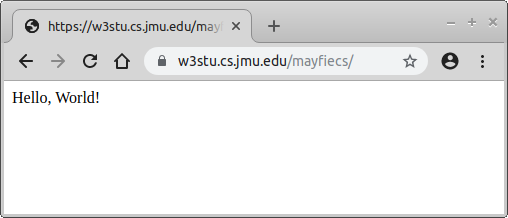
wwwdirectory, typenano index.html, which will create a new file. Type the words "Hello, World! and save the file (press Ctrl+O). In a web browser, navigate to your directory on w3stu to make sure you can view the file. Congratulations, you now have a CS home page! -
Add some HTML tags to index.html to make it valid. You might want to start with the template named ``HTML document'' W3Schools HTML Examples For full credit on today's lab, your
index.htmlfile should include an appropriate title tag and two or more hypertext links (i.e., that you can actually click on and go to another web page). Just remember that this page is publicly available over the Internet. It's up to you what else you'd like to put on your home page. Some students put their real name, a picture, and/or a few favorite links. Others use this space to post their resume when looking for an internship or full-time job. Be creative and have fun, but don't spend too much time on it. :-)
Submission Instructions
Submit your completed worksheet via
 canvas.jmu.edu by 12PM on Friday. Also complete your web page by Friday at 12pm.
To grade your web page, it will be loaded using the URL you provide for question #14.
canvas.jmu.edu by 12PM on Friday. Also complete your web page by Friday at 12pm.
To grade your web page, it will be loaded using the URL you provide for question #14.