The Pet Age Calculator App
In this activity, you will create an app that can calculate a pet's age in human years. It will work for cats and dogs, but in the bonus step, you can add another type of pet.
It will exercise some of the concepts we studied this week, plus introduce some new blocks and concepts that we will learn more about next week.
This app must be submitted as a Gallery URL.
Our pets have shorter lifespans than we do, so it is interesting to understand how old they are in human years. People used to use a simple formula for calculating how old a cat or dog is in human years - the pet's age times 7. Now veterinarians believe that has it is more complicated - cats and dogs (and even particular breeds) age differently, and they age faster when they are younger. How to Calculate Dog Years. How to Calculate Cat Years.
You are going to write a pet age calculator that takes this new research into account, using the following information:
| Dog Years | Human Years |
|---|---|
| 0 | 0 |
| 1 | 12 |
| 2 | 24 |
| 3 and up | add 4 years to the previous year's age |
| Cat Years | Human Years |
|---|---|
| 0 | 0 |
| 1 | 15 |
| 2 | 24 |
| 3 and up | add 4 years to the previous year's age |
Set up the user interface and components
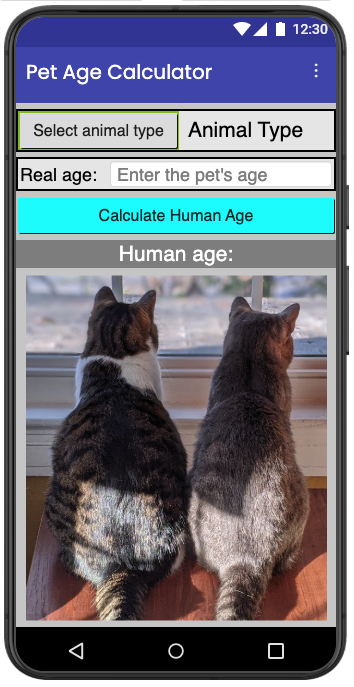
- Create a layout similar the one shown below, which consists of, in order:
- a HorizontalArrangement containing a ListPicker and a Label
- a HorizontalArrangement containing a Label and a TextBox
- a Button
- a Label
- an Image
- All the components come from the User Interface group, except for the HorizontalArrangement, which comes from the Layout group
Set up the color and images AFTER the main functionality of the app is completed. Do only the following settings at this point:
- Rename the 3 Label components to TypeLabel, AgeLabel and ResultLabel, so that you will be able to find their blocks.
- Set the ListPicker's ElementsFromString setting to
cat, dog, and the Selection setting tocat.
Basic Functionality
You must set the TypeLabel to reflect the selected animal type whenever the user makes a selection from the ListPicker.

The calculation of the human years will all take place when the Calculate button is pressed. You will want to use local variables for the real age and human age values.
The result displayed should be in the format Human Age: x
Test your app with the following sample values:
| Animal Type | Real Age | Human Age |
|---|---|---|
| cat | 12 | 64 |
| cat | 1 | 15 |
| dog | 10 | 56 |
| dog | 1 | 12 |
More functionality
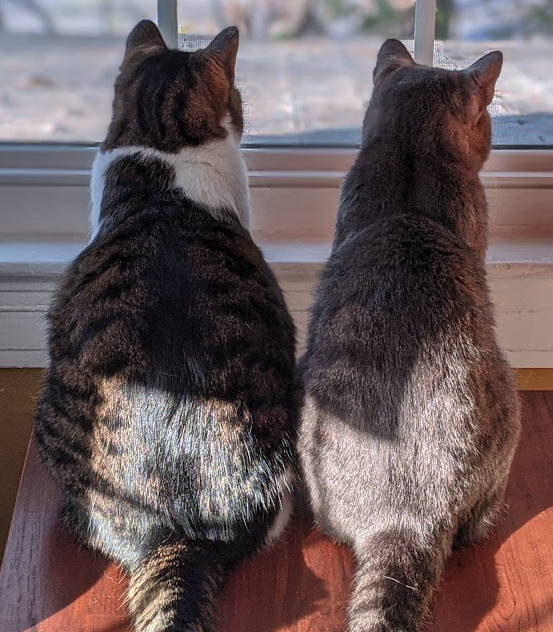
Set the initial image on the Image component to a picture of multiple pets. Use your own picture or download this picture for convenience.
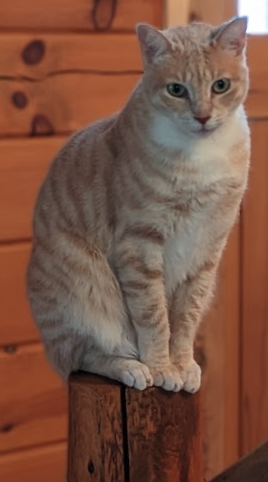
Whenever the user selects an animal type from the list picker, switch the image to a picture of a cat or a dag, depending on what was picked. Use your own pictures or download cat and download dog for convenience.

Beautify your app in other ways, changing the fonts and colors and the Screen1 title text, to make the app more user friendly.
Bonus Feature
Look up the human age calculation for another pet or animal you like and add it to your app. Be sure to put the links to your data and image sources in your Gallery entry.